

What is Sentry Mode?
Sentry mode includes built-in cameras that can function as a dash cam that is in all Teslas.
Tesla’s Sentry Mode records camera footage of both when you are driving and when your Tesla is parked. It stores the data on a USB flash drive that comes with the Tesla. However, I recommend upgrading to a SSD to store more footage.
I created a Youtube video about Sentry Mode that you can check out.

Sentry Mode Camera Footage
How to Use Sentry Mode and Dash Cam
In order to use these features, you must activate the settings.
- On your Tesla screen, go to “Safety” → Find “Sentry Mode” → Click “On”
- I personally choose to “exclude Home” because in order for Tesla to recalibrate the battery, the car needs to be in a deep sleep. In order for this to happen, sentry mode needs to be off. Since I park my Tesla in the garage at home where it is safe anyways, I don’t need sentry mode to be on.
- Also note, you have to set your home address as “Home” in the navigation for “exclude Home” to work.

2. Check to make sure Sentry Mode is enabled
- To confirm Sentry mode is working, check the top of your screen and you will see RED circle, within the outlined black circle
3. Once you enable it the first time, it should remain enabled moving forwards

How to View Sentry Mode Footage
You can only view the Sentry Mode Footage when the car is parked.
- Click Dashcam icon located on bottom of screen to see captured events
- If you want to transfer the footage to the desktop, go to your Glove box to obtain the USB drive or SSD


How to Use Tesla Dash Cam Footage While Driving
The dashcam has different options to choose from.
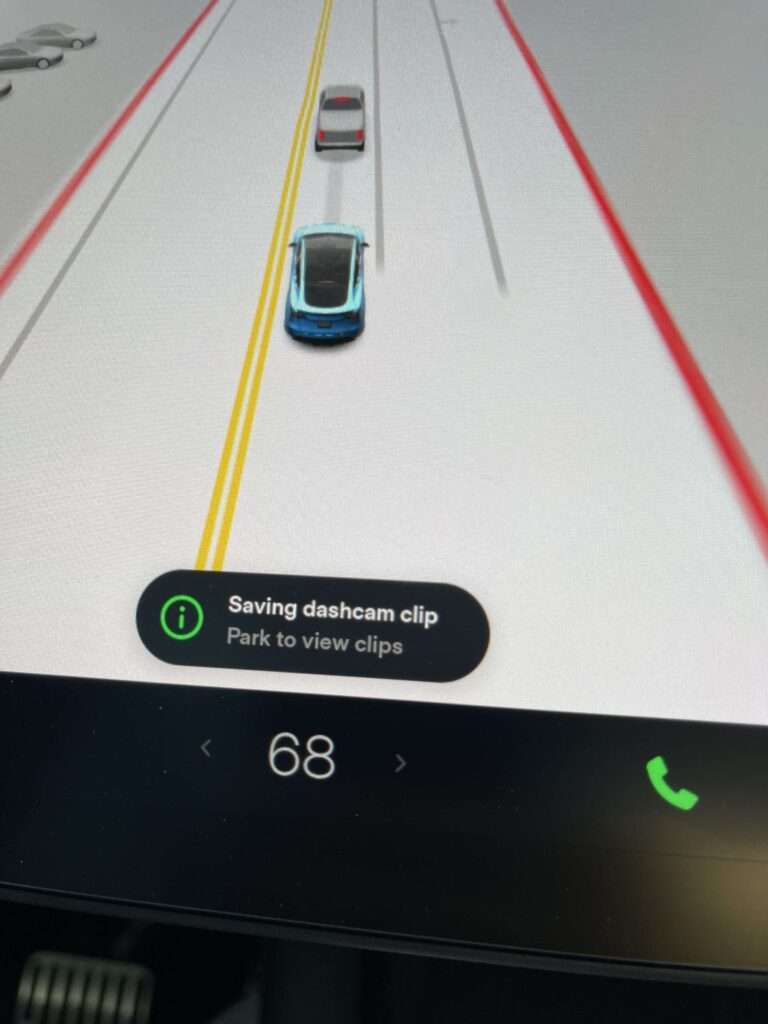
- Manual: Tesla will only record up to 10 minutes of recent driving once you park
- Auto: If the Tesla detects a safety event, the dashcam will automatically save the recording
- Be cautious with this as the Tesla detecting a “safety event” is not guaranteed. Therefore, if an actual event occurs and you want to save the footage, I recommend to manually save the footage (see below)
Ways to Manually Save Dashcam Footage While Driving
- Honk the Horn (must enable, see picture)
- Touch Dashcam icon on screen
- Use Voice command “Save dashcam”


Using your Tesla phone App for Sentry Mode when Parked
You can turn on and off Sentry mode on your Tesla phone app, as well as view live sentry mode footage.
- On your Tesla screen, enable “View Live Camera via Mobile App”
- On your phone, go to your Tesla app, and go to “Security”
- Toggle to turn on/off Sentry mode
- Click “view live camera” to see real time footage
- If you see any bad guys doing something suspicious, you can even honk your horn, flash the lights, or even yell at them, to scare them away!
Note: The app does not notify you if there’s a sentry mode event, but it does notify you if the car alarm goes off.


Caution with Sentry Mode when Parked
Sentry mode can drain your Tesla battery quickly if you leave your car for a long time. For my 2021 Tesla Model Y, it loses about 5-10% of battery per day (depending on amount of activity).
So if you’re going to be leaving your Tesla for several days, I recommend turning off Sentry mode to avoid returning to a dead battery. I also created a Youtube video, regarding what to do if you’re leaving your Tesla for a few days.
Also, Sentry Mode will automatically turn OFF if your car battery drops below 20%
When Sentry Mode Will NOT work (when Parked)
- If you choose to exclude it at a certain location (ex Home)
- The car is parked and you have less than 20% battery
- Camp mode or Dog mode are enabled under climate control
- Dog Mode was recently updated. You can now view live interior footage on your phone, when dog mode is enabled.

How to Troubleshoot if the Tesla Dashcam Is Not Working
If there is no red circle over the dashcam icon, then the dash cam is not working. You may see a red X, which indicates it is not recording.

Here’s a few things you can try to fix it:
- Open the glove box, then plug and unplug the USB or SSD
- Go to Safety→ “Format drive”
- Note, sometimes you have to do this several times (3-4x) before “Success” is seen

- Reset your Tesla car by using the “2 finger salute”
- On the steering wheel, hold down both scroll wheels at the same time, for about 30 seconds – 1 minute. The Tesla screen will go black, and then eventually restart with the Tesla logo
- If all else fails, you may need to plug it into a computer and reformat it via disk management.

Summary
Overall, I love Tesla’s Sentry Mode and Dashcam because it is a built-in feature and comes with the car. However, you must check your settings to ensure that it is on, when you want it to be.
DISCLAIMER
The opinions and views expressed on this blog are solely personal, Everyday Chris. Everyday Chris is not affiliated with or endorsed by Tesla. It is neither inferred nor implied that products recommended by Everyday Chris nor recommendations given by Everyday Chris are authorized by or in any way connected to Tesla. This post may contain affiliate links, which means I’ll receive a commission if you purchase through my links, at no extra cost to you. Please read full Terms & Conditions for more information. .